
Struggling with your Chromebook's quiet speakers? You're not alone. This guide covers exactly how to make Chromebook louder — from quick OS fixes to the most effective solution: a volume booster Chrome extension that amplifies audio up to 1500% in under 60 seconds.
📋 What's in this guide
Why Is My Chromebook So Quiet?
Most Chromebook speakers max out at 60–70 dB — noticeably quieter than a standard laptop. This happens for three main reasons:
- Thin chassis: Slim design means small speaker chambers with less air to amplify sound.
- Low-wattage drivers: Budget and mid-range Chromebooks use 1–2W speakers to save power and cost.
- Chrome OS volume cap: Chrome OS limits system output to protect speakers from distortion — even at "100%" you're not getting the hardware's true maximum.
The result: quiet videos, barely audible calls, and music that sounds like it's coming from the next room. But Chrome OS actually gives you a powerful workaround — the volume booster Chrome extension.
Quick Fixes to Try First
Before installing anything, check these settings — they take 10 seconds each:
-
Check Chrome OS volume Click the clock in the bottom-right corner → drag the volume slider all the way to the right. Make sure it's at 100% before anything else.
-
Unmute the tab Right-click the tab playing audio → click "Unmute tab". A muted tab icon looks identical to an active one but produces no sound.
-
Check the site's player YouTube, Netflix and Spotify all have their own internal volume sliders. Make sure those are also at 100% — your system volume multiplies on top of the player's level.
-
Clean the speaker grilles Dust and debris in the speaker vents can cut volume by 30–40%. Use a soft brush or compressed air to clear them out.
Still not loud enough? The best way how to make Chromebook louder beyond the OS cap is a Chrome extension — it processes audio directly in the browser, bypassing Chrome OS limits entirely.
The Fastest Fix: Volume Booster Chrome Extension
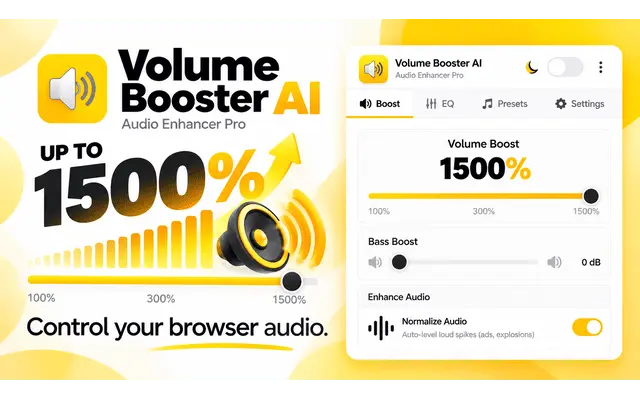
The Chrome OS volume cap is a software limit, not a hardware one. A Chrome extension can bypass it by processing audio directly in the browser using the Web Audio API — amplifying the signal before it reaches your speakers, up to 1500% of the original volume.
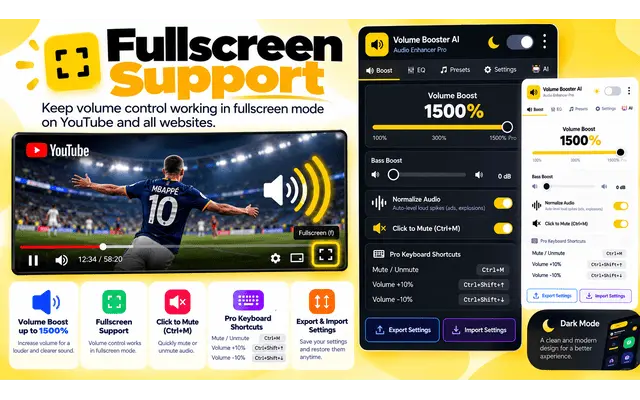
Volume Booster AI is the most advanced option available today. It was built specifically for Chromebooks and Chrome browsers, with AI-powered site detection that automatically applies the best audio settings for YouTube, Netflix, Spotify, Zoom, and 10+ other sites.
How to Install & Use the Volume Booster on Chromebook
-
Open the Chrome Web Store Click the button below — it takes you directly to the Volume Booster AI listing on the Chrome Web Store.
-
Click "Add to Chrome" A popup asks you to confirm. The extension only requests tab audio access — no personal data, no browsing history. Click "Add extension".
-
Pin it to your toolbar Click the puzzle icon 🧩 in Chrome → find Volume Booster AI → click the pin. The icon stays visible in your toolbar for instant access.
-
Open a video and boost Play any video or audio on your Chromebook, click the extension icon, and drag the slider up. Start at 200–300% for most use cases. You'll hear the difference immediately.
 Add to Chrome — Free
Other Ways to Make Your Chromebook Louder
🔊 Use External Speakers or Headphones
The simplest hardware upgrade: plug in a USB-C or Bluetooth speaker. Even a $20 portable speaker delivers dramatically more volume than any built-in Chromebook speaker. Headphones also give you cleaner, louder audio at lower power levels. For more tips on getting the most out of your speakers, see our guide on how to make speakers louder.
💻 Enable Equalizer in Chrome OS Settings
Some Chromebooks (Pixelbook Go, Acer Chromebook Spin) include a built-in equalizer under Settings → Sound → Audio Equalizer. Boosting the mid-range and bass frequencies can add perceived loudness without touching the volume slider.
🎵 Use High-Quality Audio Sources
Poorly encoded audio sounds quiet even at max volume. On YouTube, switch to the highest available resolution — higher resolution videos often include better audio encoding. On Spotify, set streaming quality to "Very High" in Settings → Audio Quality.
🔧 Update Chrome OS
Google occasionally ships audio driver improvements in Chrome OS updates. Go to Settings → About Chrome OS → Check for updates. A pending update might already include a fix for your audio issue.
Method Comparison
| Method | Max Boost | Cost | Setup Time |
|---|---|---|---|
| Volume Booster AI Extension | ✅ Up to 1500% | Free / $2.99 mo | 60 seconds |
| External Bluetooth Speaker | Depends on speaker | $20–$200+ | 5–10 minutes |
| Chrome OS EQ Settings | Mild improvement | Free | 2 minutes |
| Chrome OS Update | Varies | Free | 10–30 minutes |
| High-Quality Audio Sources | Mild improvement | Free | 1 minute |
Frequently Asked Questions
Why is my Chromebook so quiet even at full volume?
Chrome OS caps the software output to protect speakers. Even at "100%", you're not using the full potential of the audio hardware. A volume booster Chrome extension bypasses this cap by amplifying the audio signal inside the browser before it's sent to the speakers.
Will boosting the volume damage my Chromebook speakers?
At moderate levels (200–400%) the risk is minimal. Volume Booster AI includes distortion prevention that limits audio clipping even at high boost levels. For extended listening at extreme levels (1000%+), use headphones or external speakers to avoid long-term strain on built-in drivers.
Does Volume Booster AI work on all Chromebook models?
Yes — it works on any Chromebook running Chrome browser, regardless of brand (Acer, Asus, HP, Lenovo, Samsung, Google Pixelbook). It also works on any Windows or Mac computer running Chrome.
How do I make YouTube louder on my Chromebook?
Install Volume Booster AI, open YouTube, play any video, and drag the extension slider to 200–300%. The AI Auto-Volume feature (Pro) automatically applies the ideal YouTube audio profile so you never have to adjust it manually again.
Is it safe to install a Chrome extension for volume boost?
Yes — as long as you install from the Chrome Web Store and check the permissions. Volume Booster AI only requests tab audio access. It does not collect any personal data, does not access your microphone, and does not track your browsing. It has been reviewed by Google's security team.
Can I use it on Netflix and Spotify on my Chromebook?
Yes. Volume Booster AI works on all HTML5 audio and video, including Netflix, Spotify, Disney+, YouTube, Amazon Prime, Twitch, Zoom, Google Meet, and more. The Pro version automatically detects each site and applies the best audio settings.
Make Your Chromebook Louder Right Now
Now you know exactly how to make Chromebook louder — and the fastest method is just one click away. The Volume Booster Chrome extension gives you dramatically louder audio without buying new hardware or changing your setup.
Free to install. Works instantly. No account required.
Choose your browser and start boosting:
 Add to Firefox — Free